
Introduction

The Invoice Management System (IMS), introduced on the GST portal from the October 2024 tax period, marked a significant step toward streamlining invoice compliance for taxpayers. By allowing recipients to accept, reject, or keep invoices pending, IMS has simplified reconciliation and improved transparency in return filing. To further enhance convenience, the GST portal has now rolled out the IMS Offline Tool, an Excel‑based utility that empowers taxpayers to manage invoices efficiently in bulk as well as individually, while ensuring consistency with portal validations and business rules.
What is IMS?
The Invoice Management System (IMS) was introduced on the GST portal effective from the October 2024 tax period. The system enables recipient taxpayers to take actions on invoices uploaded by their suppliers through GSTR-1, GSTR-1A, or IFF, including accepting, rejecting, or keeping such records pending.
Steps to use the IMS offline tool
a) Download the Tool:
- Visit GST Portal: gst.gov.in
- Navigate to Downloads -> Offline Tools -> IMS Offline Tool to download the
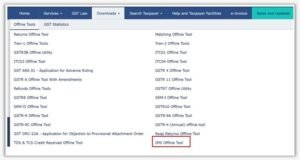
- The tool will be downloaded as a zip Extract the zip file, enable the macros through the file properties and open the Excel utility.
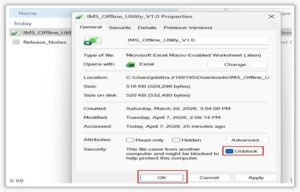
b) Download IMS Data from Portal:
- To download data from GST Portal, navigate to Services -> Returns -> Invoice Management System (IMS) Dashboard -> Offline
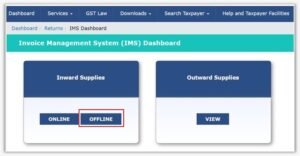
- Click on Download Save the Json file on your system.

c) Import downloaded Json File and Validate Sheet
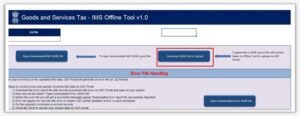
- Click on Open Downloaded IMS Json File in Home sheet

- Select the downloaded file from the online portal to auto-populate invoice
- Perform the following actions:
-Accept/Reject/Pending/No Action
-Add remarks (if applicable)
- Click on Validate Sheet button.
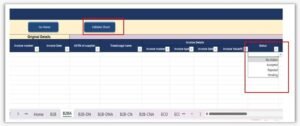
d) Generate and Upload Json on GST Portal:
- Click on Generate Json File to Upload to create the Json.
- To upload the Json, login to GST
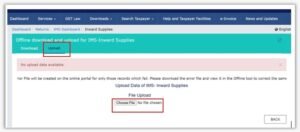
- Navigate to: Services -> Returns -> Invoice Management System (IMS) Dashboard ->
- Click on Upload Json to upload the generated file.
Some Important points / validations Related to Using Offline Tool
- The IMS offline tool follows the same validations and business rules as applicable on the IMS dashboard portal, including treatment of accepted, rejected, pending, and no-action
- If no changes are made on the records after importing the JSON file into the offline tool, the generated JSON file will be
- The tool provides filter options to filter the invoices based on relevant Filters are cleared while performing the ‘Validate Sheet’ action.
- Click on `Validate Sheet` button, to validate data in each worksheet in offline tool, after all the actions required are taken in the
- In case of validation failure of details on uploading JSON file, an error file will be generated with status as `Processed with Error`. This file can be downloaded, open in offline tool, take relevant actions to remove the highlighted errors and can be uploaded by creating a JSON file
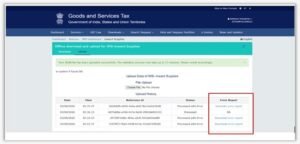
- Upon uploading this JSON file, these records will get incrementally added to the records uploaded If there are pre-existing records on the Portal, against same GSTIN, those details will get replaced/updated.
Conclusion
The IMS Offline Tool is designed to make compliance faster, easier, and more user‑friendly. With features such as bulk invoice handling, validation checks, and error correction, taxpayers can seamlessly manage their invoice actions offline and upload them back to the GST portal with confidence. By mirroring the portal’s rules and offering flexibility through filters and incremental uploads, the tool ensures accuracy while reducing manual effort. In essence, IMS Offline Tool bridges the gap between convenience and compliance, enabling taxpayers to stay in control of their GST obligations.